How to Use Writer Agent for Content Briefs
Written By Chioma Ugwu
Last updated About 1 year ago
For a brief overview of Writer Agent, see the article: What is Writer Agent?
This tutorial provides a step-by-step guide to creating high-quality content with Writer Agent. You’ll learn different ways to draft content using the tool’s features, helping you produce first-rate articles faster and more accurately.
1. Write Content Section by Section
One of the most effective ways to use Writer Agent is to create your content piece by piece, following the structured outline from your Content Brief. This lets you keep full control over the flow while still saving hours of manual work.
Step 1 - Start from Your Content Brief
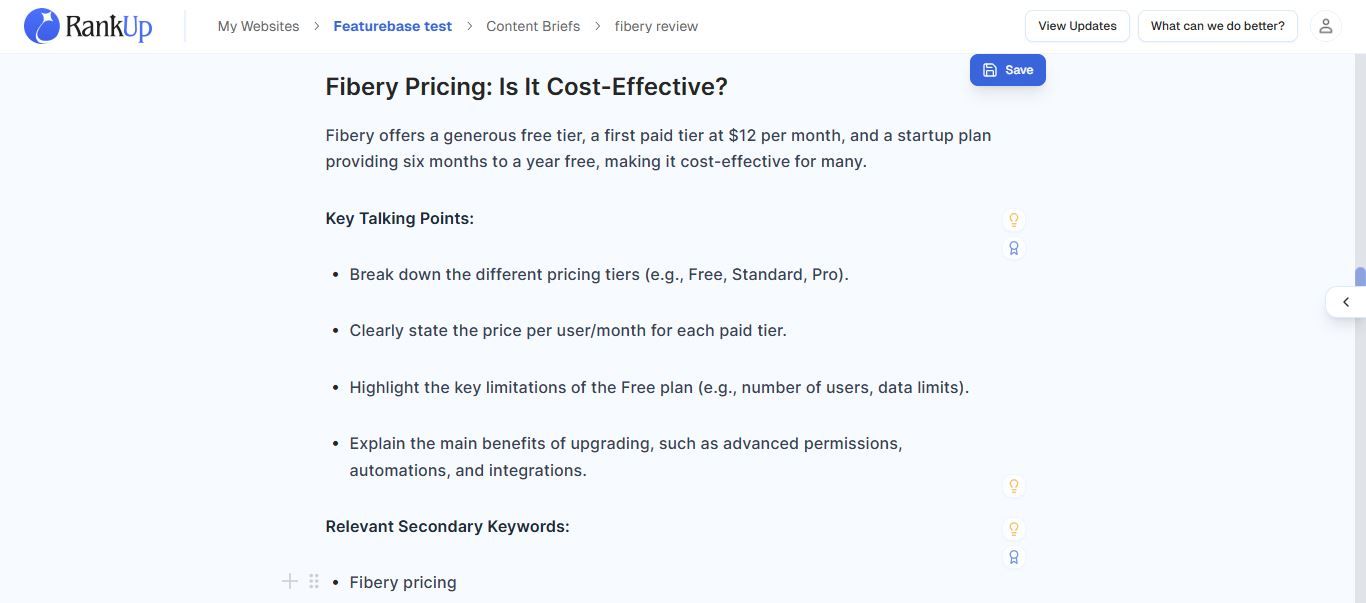
Your Content Brief typically includes sections with:
Headings (H1, H2, H3, etc.) that structure your piece.
Key talking points under each heading.
Secondary keywords to target in each section.
Example section from a Content Brief:
Step 2 - Select the Section You Want to Write
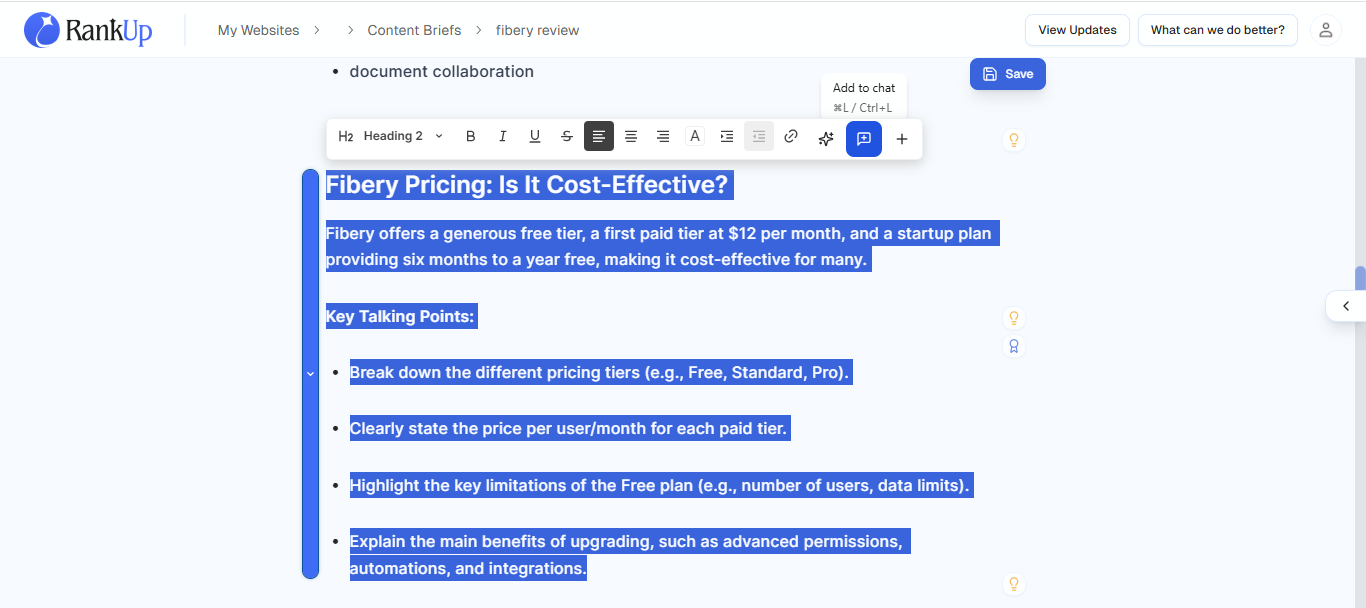
Highlight the relevant section in your Content Brief.
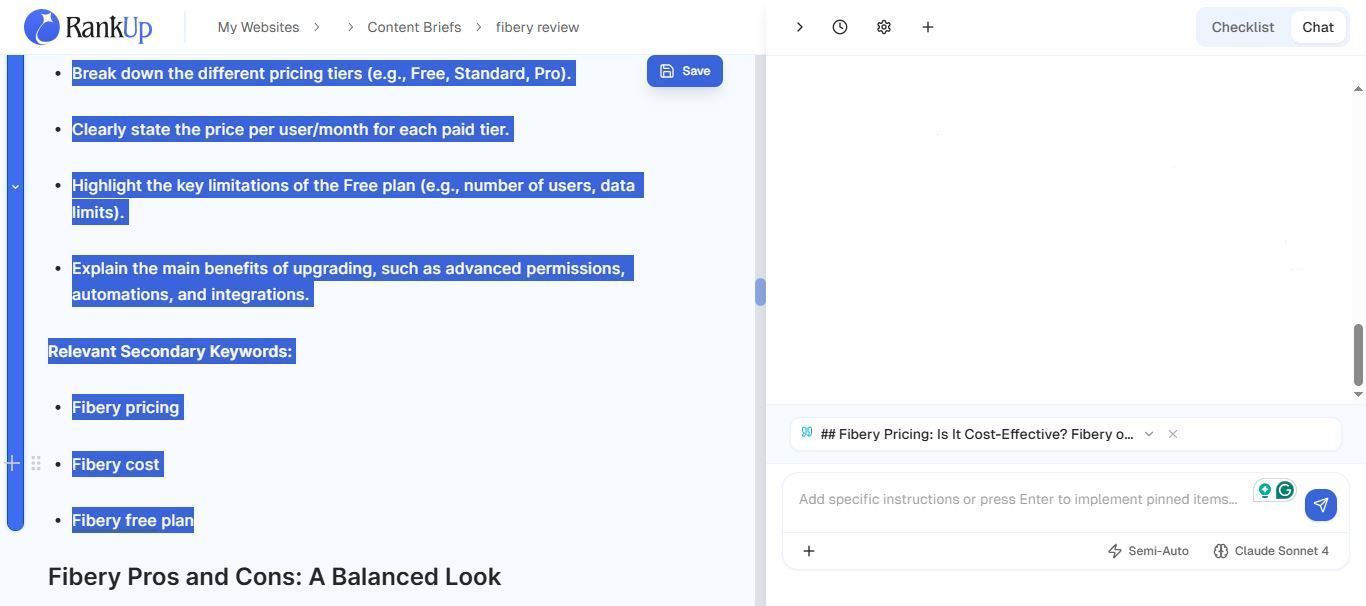
A pop-up will appear. Click “Add to Chat.”
This opens the Writer Agent sidebar with your selected section already added to the chat.
Step 3 - Add Checklist Items for Better Quality
Click the "+" button in the chat sidebar to browse checklist items relevant to your section.
Checklist items are generated automatically from RankUp’s SEO analysis and include detailed, actionable instructions.
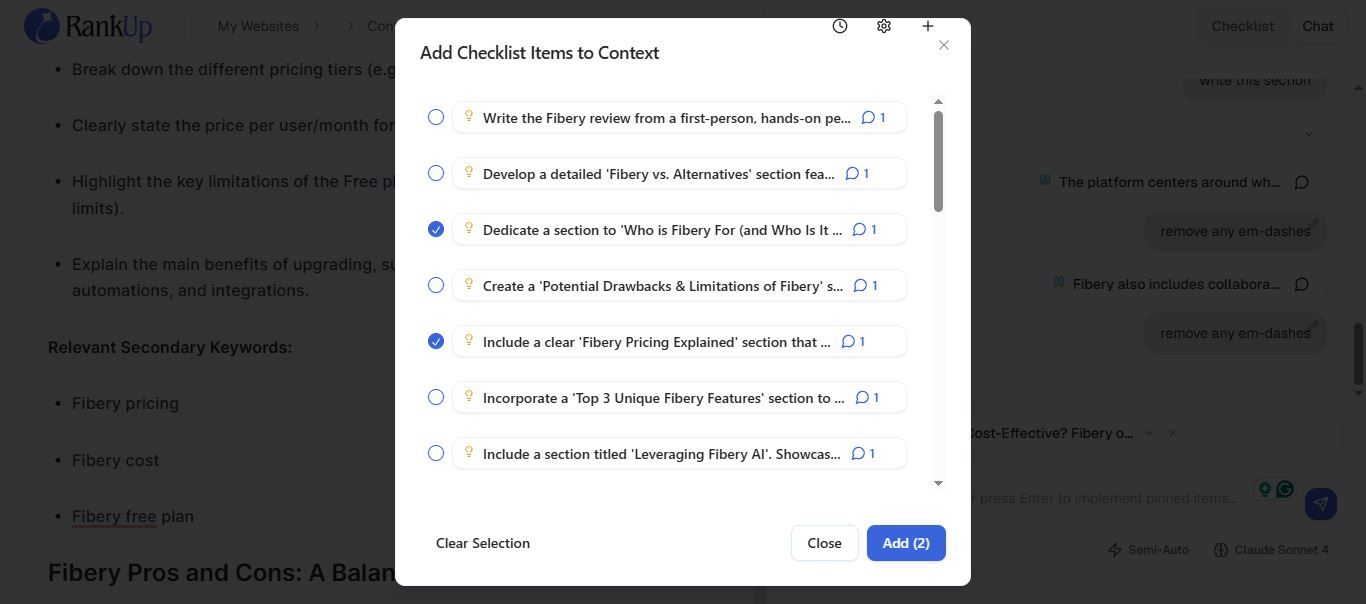
Types of Checklist items:
Keywords: The main search terms and related phrases your content should cover, based on what’s driving results for competitors.
AI Suggestions: Gap-filling ideas and improvement tips from competitive analysis.
Unique Angle: Suggestions to make your content stand out from similar posts.
AI Overview Optimisation: Steps to help your content appear in Google’s new AI-generated summaries.
SEO Best Practices: Enriched SEO checklist with exact writing suggestions.
SERP Features: Opportunities to show up in special Google results like answer boxes or “People Also Ask.”
Inbound Internal Links: Recommendations for pages within your own site that should link to this content to boost its authority.
Outbound Internal Links: Other pages on your site that this content should link out to for stronger internal connections.
💡Tip: Only add checklist items relevant to your current section. This keeps the Writing Agent’s focus sharp.
Step 4 - Add Any Extra Instructions
You can type additional prompts directly into the chat, for example:
“Make this section 200-300 words.”
“Keep the tone conversational but professional.”
“Include a table comparing features.”
Step 5 - Choose Your Context Engineering Mode
Writer Agent gives you flexible control over how much you want to be involved in the process:
Full-Auto: RankUp builds and runs the full context plan for you.
Semi-Auto: Review and tweak RankUp’s suggested plan before generating.
Quick Edit: Skip full setup for small tweaks or simple changes.
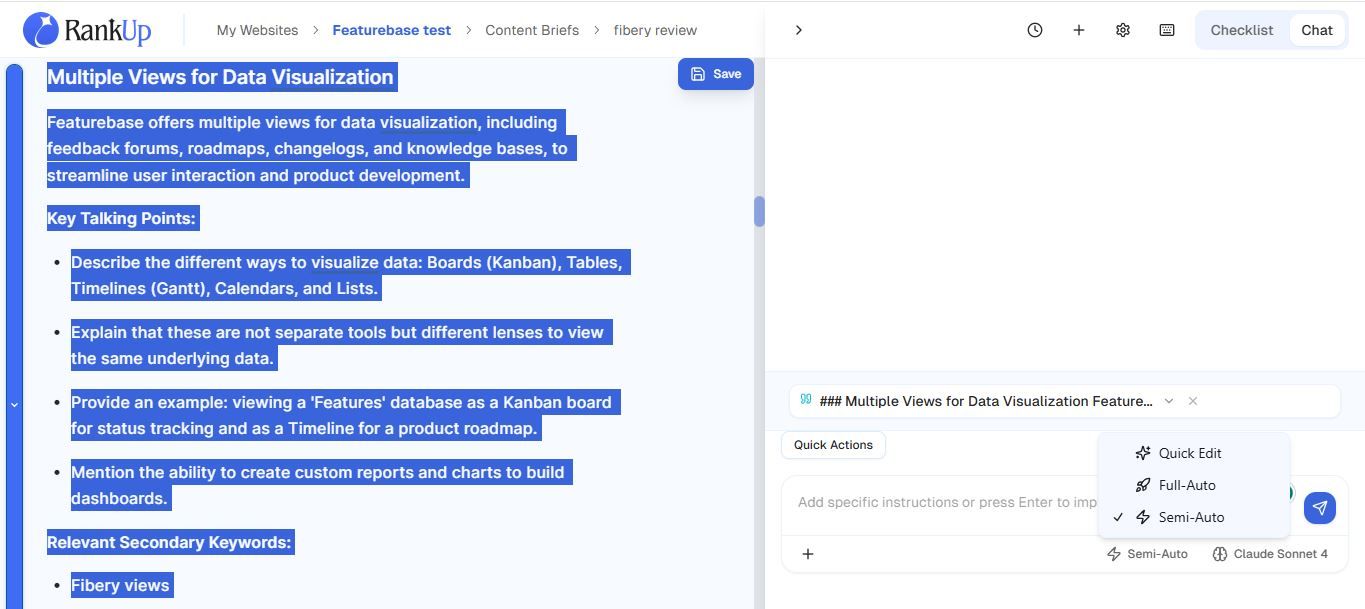
Step 6 - Generate Your Section
Click the Send to start.
Depending on your chosen mode:
Quick Edit: Output is generated immediately.
Full-Auto: Tasks are planned and approved automatically, followed by research and context fetching, and then the output is generated. (Note: This process can take one to two minutes if you’re running multiple tasks simultaneously.)
Semi-Auto: RankUp suggests a task breakdown and context for each task. You can review and adjust the plan, then approve to run.
What to Review and Edit In Semi-Auto Mode
When RankUp proposes a context plan in Semi-Auto, check and edit these items before approving:
Research queries: Are the suggested research queries clear and relevant to your topic? If they feel too broad or off-track, refine them if you need better or more relevant sources.
Style guides: Are all relevant style guides included? Add or remove any brand guidelines if needed.
Checklist selection: Are the right checklist items included? Remove irrelevant items or add any missing ones.
Prompts: Would adding a short prompt improve the output (e.g., “add a CTA here”)? Add it now.
Reference material: If parts of the brief are for reference only, specify them as reference so the agent doesn’t rewrite them.
After you edit, approve the plan, and let the agent run the tasks.
Step 7 - Review and Refine
The generated section appears in the editor. RankUp presents changes as "Before/After blocks" so you can see what’s been added or replaced.
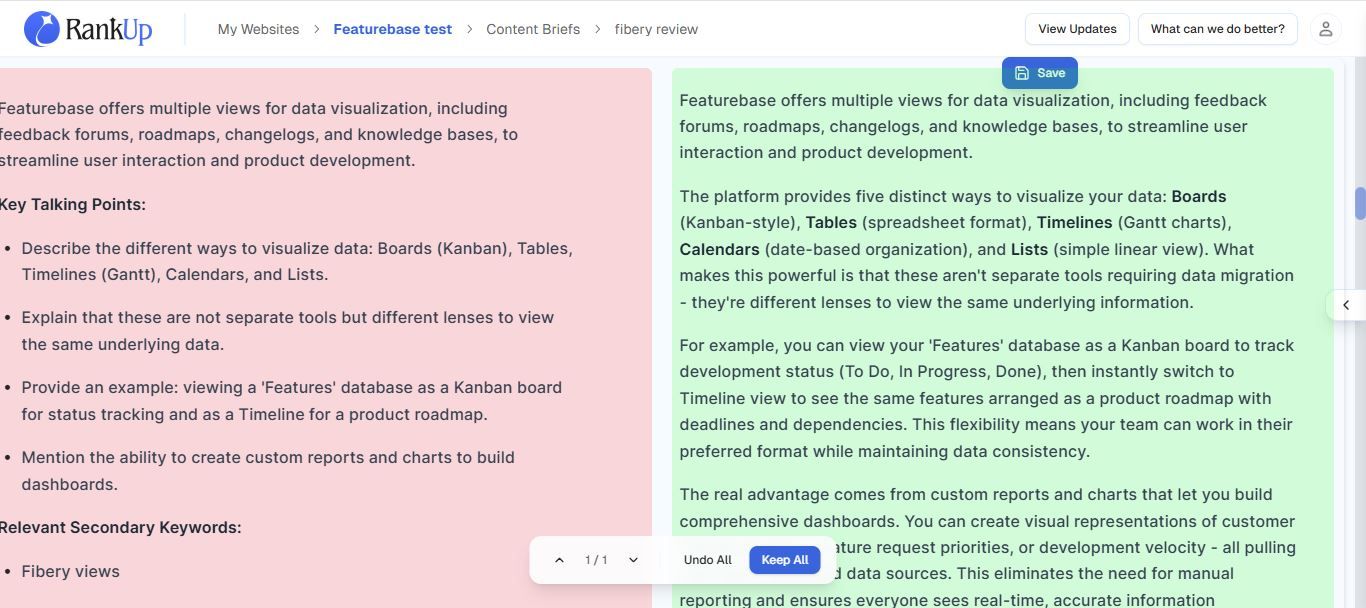
Once your section is generated, you can:
Accept it as-is.
Make small tweaks using Quick Edit.
Or re-run with different checklist items/prompts for an improved version.
2. Write an Entire Content Piece at Once
Another way to use the Writer Agent is to generate the entire content in one go based on your outline, rather than working section-by-section. This saves you a bit more time and is great for when you need quality content quickly.
Step 1 - Open the Chat Panel
Start with your Content Brief already open in the editor.
Open the side panel and switch to the Chat tab.
Step 2 - Choose your Context Engineering Mode
Pick how much control you want:
Full-Auto
Semi-Auto
💡Tip: For optimal results, Quick Edit mode is not enabled when drafting full articles. You can, however, use Quick Edit only for small tweaks after generation.
Step 3 - Use Quick Actions
Near the chat box, click the Quick Actions button.
Select “Draft Whole Article.”
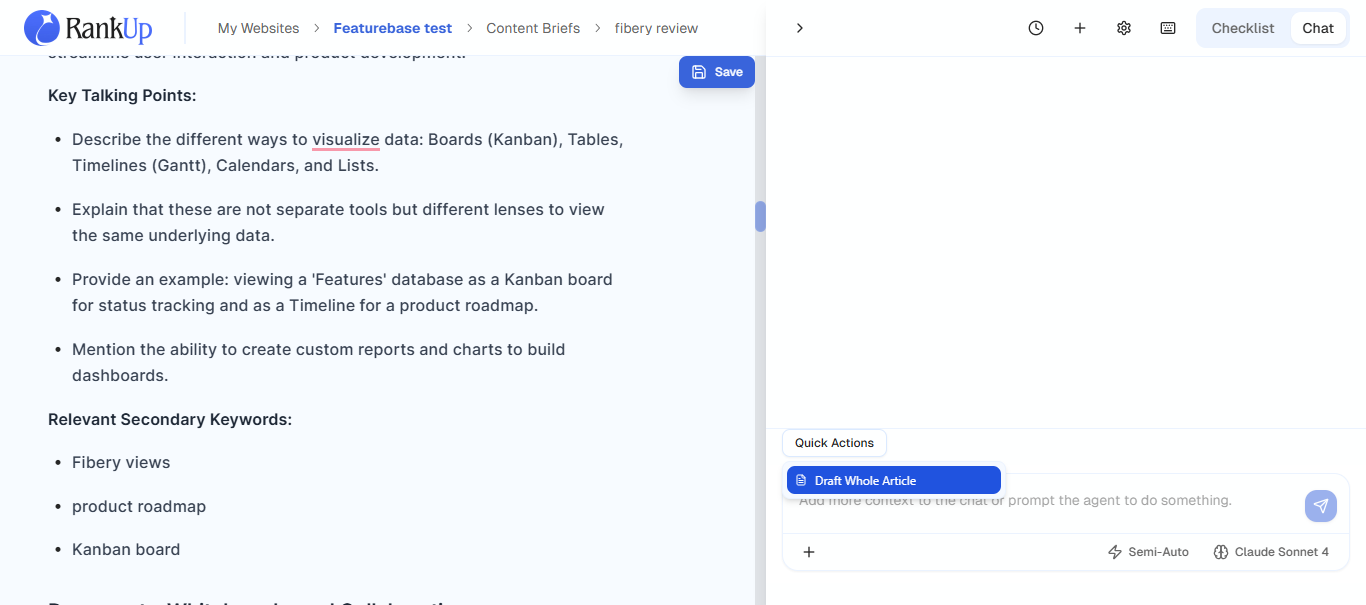
Step 4 - Generate Your Content
Click Send. Depending on the mode:
Full-Auto generates the full article immediately.
Semi-Auto shows a suggested task list and context for you to review and approve before generating.
Step 5 - Review the Output
Once the article is generated, it appears in the editor as Before/After blocks, showing exactly what has been added. Check for:
Structure and flow
Factual accuracy
Tone and keyword usage
Step 6 - Refine as Needed
To refine the whole piece, add checklist items or change the prompt and rerun.
To polish specific parts, use section-by-section edits or Quick Edit on specific paragraphs.
For factual or up-to-date points, add a research task to the context and regenerate the relevant sections.
3. Reviewing & Refining a Full Draft with Checklists
Whether you’ve used Writer Agent to generate a full draft for you or you’ve written one yourself using the content brief, checklists help you refine and optimise the piece before publishing. This ensures your article covers direct-answer tasks, meets standard SEO best practices, and aligns with your content goals. Here’s how to use checklists to review and optimise a full draft:
Step 1 - Add Your Draft to Chat
From the editor, open the chat panel.
💡Tip: You don’t need to highlight the entire draft to apply checklist items. The Writer Agent automatically applies selected checklist items across the whole content piece.
Step 2 - Apply Checklist Items Across the Draft
Click the "+" button in the chat sidebar to browse checklist items, which might include keyword and AI suggestions, SEO best practices, and unique angles.
Select the checklist items you want to apply.
Choose either Full-Auto mode to generate the output immediately, or Semi-Auto to review the task list and context before generating.
💡Tip: It’s best to use packed checklist items (i.e., checklist items with multiple comments/subtasks) like “Provide more details per section" one at a time in the chat. Comments may specify subtasks and edits in multiple locations, so it’s important not to overcrowd the prompts.
Step 3 - Review the Suggestions
Review the Before/After blocks to see what’s been added or changed.
Accept the ones that fit your content goals, and adjust as needed.
If you notice certain parts of your draft need more work, you don’t have to re-run the full piece. Instead, highlight that section, add it to the chat, and apply checklist items just for that part.
4. Specific Writing Tasks
You can also use Writer Agent for precise, high-impact edits or short copy jobs. These tasks are ideal when you want sections improved quickly.
How this works in general
Step 1 - Select the target text, paragraph, or section in the editor.
Step 2 -Click Add to Chat or press Cmd/Ctrl + J to open the Writer Agent pop-up.
Step 3 -Add checklist items that are relevant to the change(s) you want to make.
Step 4 -Type a short instruction.
Step 5 -Choose a mode. For single short tasks, use Quick Edit. For multi-step edits, use Semi-Auto or Full Auto.
Step 6 -Send, review the result, and accept or refine.
💡 Tip: You can queue several micro tasks together in the same chat. For example, ask Writer Agent to rewrite the H1, write three CTAs, and refine the intro in one request. The multi-task system will split the job into separate tasks and apply context engineering to each. Use Semi-Auto to review the task breakdown before generation.
Examples of Specific Tasks
1. Write the intro
What: Create or improve the article opening to capture attention and set expectations.
Recommended mode: Semi-Auto.
Steps:
Open the chat and write a prompt for writing an article intro.
Add relevant checklist items for the introduction and target keywords.
Prompt example: “Write a 120-160-word intro that hooks the reader and mentions the main keyword once. Keep the tone professional and approachable.”
💡 Tip: You can simply prompt “Write an intro”, and it’ll work fine. You can also add more details to your prompt if you have specific requirements.
For semi-auto:
Review that the intro prompt and style guide have been added to the context.
If you want additional details, such as statistics to help hook the reader, add a research query to find them.
2. Write a CTA-styled conclusion
What: End an article with a persuasive conclusion that drives action.
Recommended mode: Semi-Auto.
Steps:
Highlight the conclusion section and add to chat. If a conclusion section isn’t included in the outline, you can just open the chat and prompt “write a CTA-style conclusion”.
Add relevant checklist items.
Prompt example: “Write a 70-120-word conclusion that summarises key points and ends with a clear call to action to start a free trial.”
3. Rewrite the H1
What: Improve the main headline for clarity and SEO.
Recommended mode: Quick Edit or Full-Auto.
Steps:
Highlight the current H1.
Press Cmd/Ctrl + J to open the Writer Agent pop-up.
Prompt example: “Rewrite the headline to be under 60 characters, include the primary keyword, and sound action-oriented.”
Pro Tips and Keyboard Shortcuts
Quick tips and actions to speed up your workflow
Text Selection Actions
Add to Chat: Cmd/Ctrl + L
Open Al assistant: Cmd/Ctrl + J
Add selected text to examples collection: Cmd/Ctrl + Shift + E
AI Actions
Quick Edit mode → Send: Cmd/Ctrl + Shift + Q
Full-Auto mode → Send: Cmd/Ctrl + Shift + F
Semi-Auto mode → Send: Cmd/Ctrl + Shift + S
Approve all tasks (Semi-Auto): Cmd/Ctrl + Shift + A
💡 Tip: After generation, verify facts, dates, and citations manually. Writer Agent helps draft faster, but does not replace subject-matter review.
Diff/Before-After Block Management
Accept all changes: Cmd/Ctrl + Shift + Enter
Reject all changes: Cmd/Ctrl + Shift + Backspace
Navigate to previous diff: Option/Alt + ⬆️
Navigate to next diff: Option/Alt + ⬇️
Editor
Save document: Cmd/Ctrl + S
Was this helpful?
Still need help? Ask the team